
Need someone to approve a Google Form™ submission before it counts — a purchase request, leave application, or quotation? By default, Google Forms™ just collects answers; there's no way to send a response to an approver, record an approve or reject decision, or turn the result into a document. This guide shows the fastest way to build a complete approval workflow in Google Forms — route each submission to the right person, approve or reject in one click, and auto-generate and file a PDF when it's approved. No scripts, no coding.
- Route for approval
- Approve / reject
- Auto-generate PDF & Docs
- Auto-file to Drive
- Free add-on
Why automate approvals in Google Forms?
Whenever a form submission needs a sign-off before anything happens, you need an approval step. Common examples:
- Purchase & expense requests — a manager approves before procurement acts.
- Leave & time-off applications — route to the right supervisor for a decision.
- Quotations & contracts — approve, then generate a clean PDF to send.
- Onboarding & access requests — confirm before granting access.
- Reimbursements — review the claim, then auto-file the approved record.
Without a workflow, you end up forwarding emails by hand, copying answers into documents, and chasing approvers for a yes or no — and there's no audit trail of who approved what.
What Google Forms can & can't do natively
Google Forms™ is great at collecting responses, and it can email you when a new one arrives. But on its own it does not:
- route a submission to an approver for a decision;
- record an approve or reject action with an audit trail;
- generate a PDF, Doc™ or Sheet™ from the answers;
- file the result into the right Drive™ folder automatically.
To do any of these, you need an add-on. Light Workflow adds a full approval flow plus document generation directly inside Google Workspace™ — and it's free to start.
Install the Light Workflow add-on
Open the Light Workflow page on the Google Workspace™ Marketplace and click Install. It takes a few clicks and works inside the Google Forms™ and Google Sheets™ you already use.
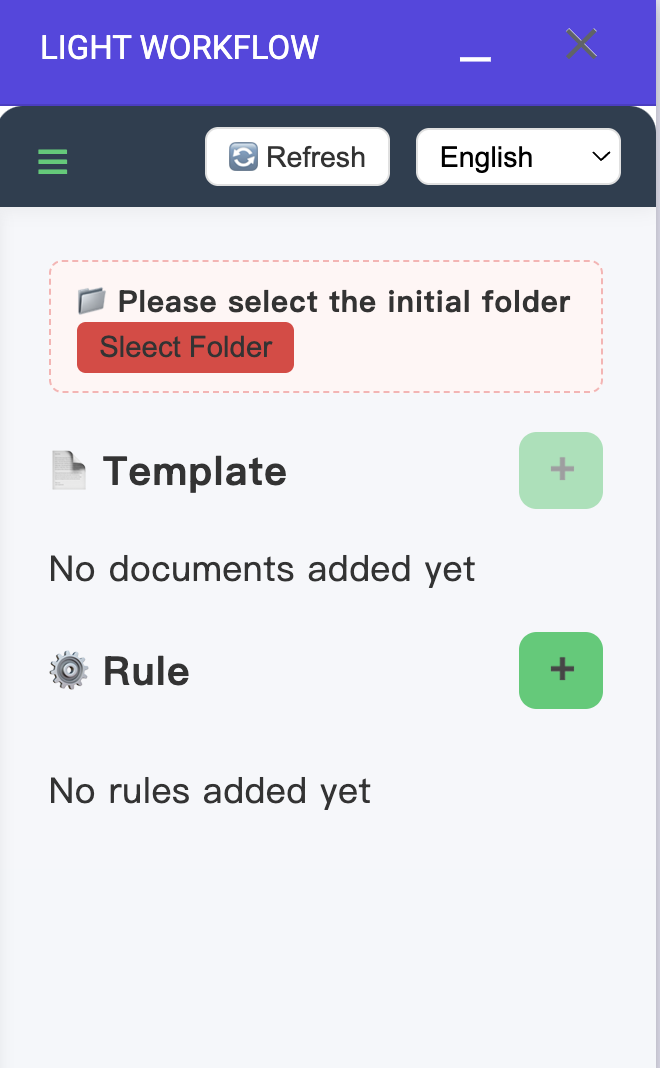
Choose your working folder
The first time you open Light Workflow, pick an initial working folder in Google Drive™. Everything the add-on creates is kept here in one place: the Approval summary sheet that logs every request and its current status, and the final documents generated automatically once a request is approved.
Build your approval logic
Open Edit workflow logic to design the flow. Add approvers to the Recipient List and set each one's action to approve or reject. For multi-step sign-off, add recipients in order so the request moves from one approver to the next. You can also add a condition — for example, only route submissions where Expect Delivery Date is before a certain date — so the right requests reach the right people automatically.

Generate a document on approval
Connect a template so an approved submission becomes a finished document. Add merge tags like {{Name}}, {{Destination}} or {{ID}} in your template, and Light Workflow fills them with the form answers — producing a branded PDF, Google Docs™ or Sheets™ file (a quotation, approval form, or contract) automatically the moment the request is approved. No copying and pasting.
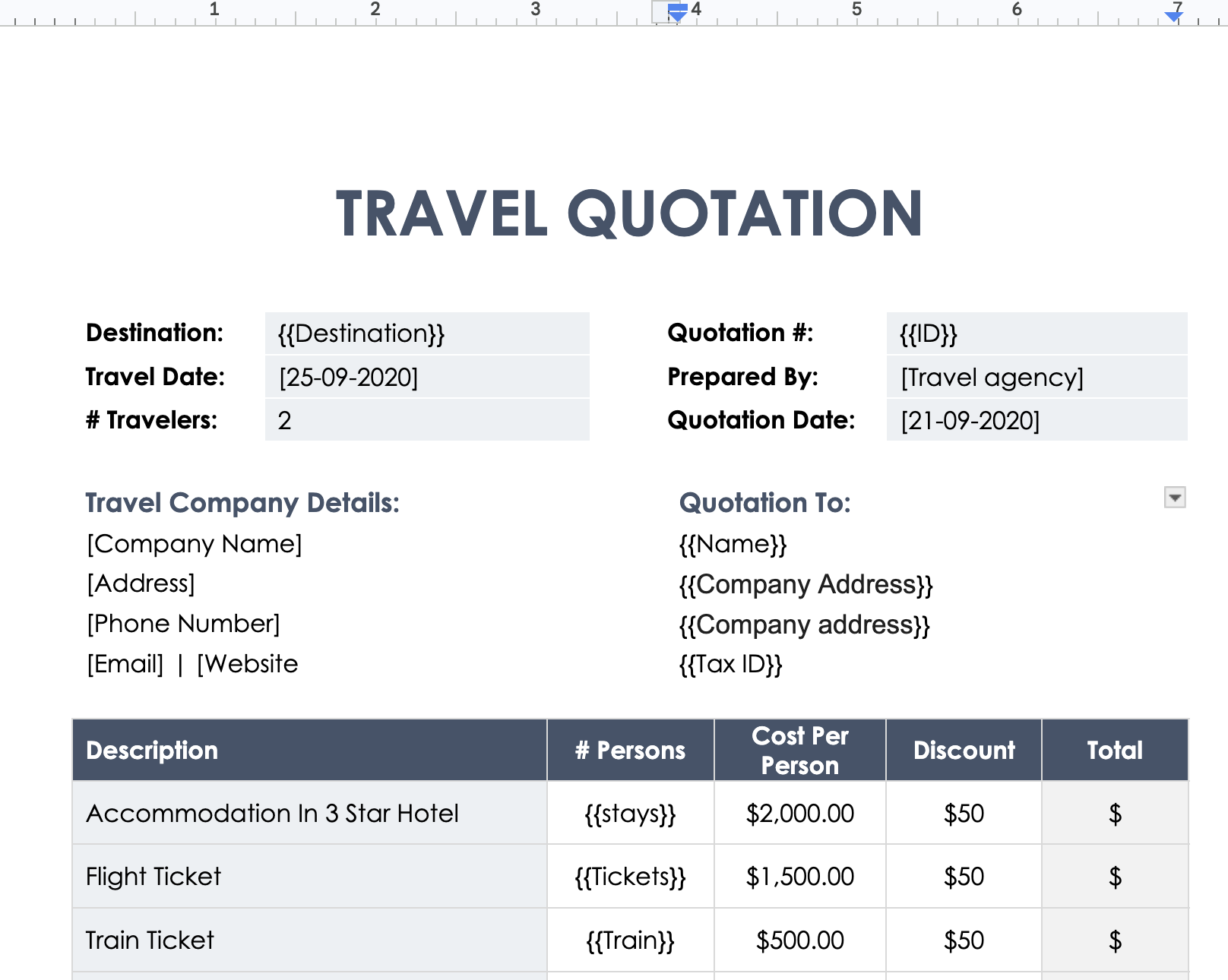
{{Destination}} and {{Name}} are replaced with form answers in the generated document.Auto-file to Drive and track everything
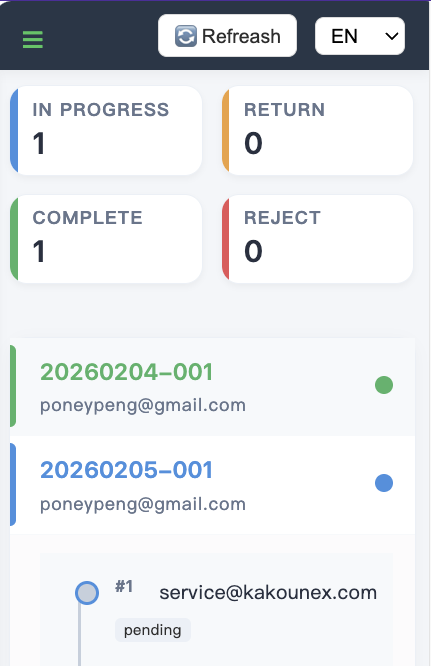
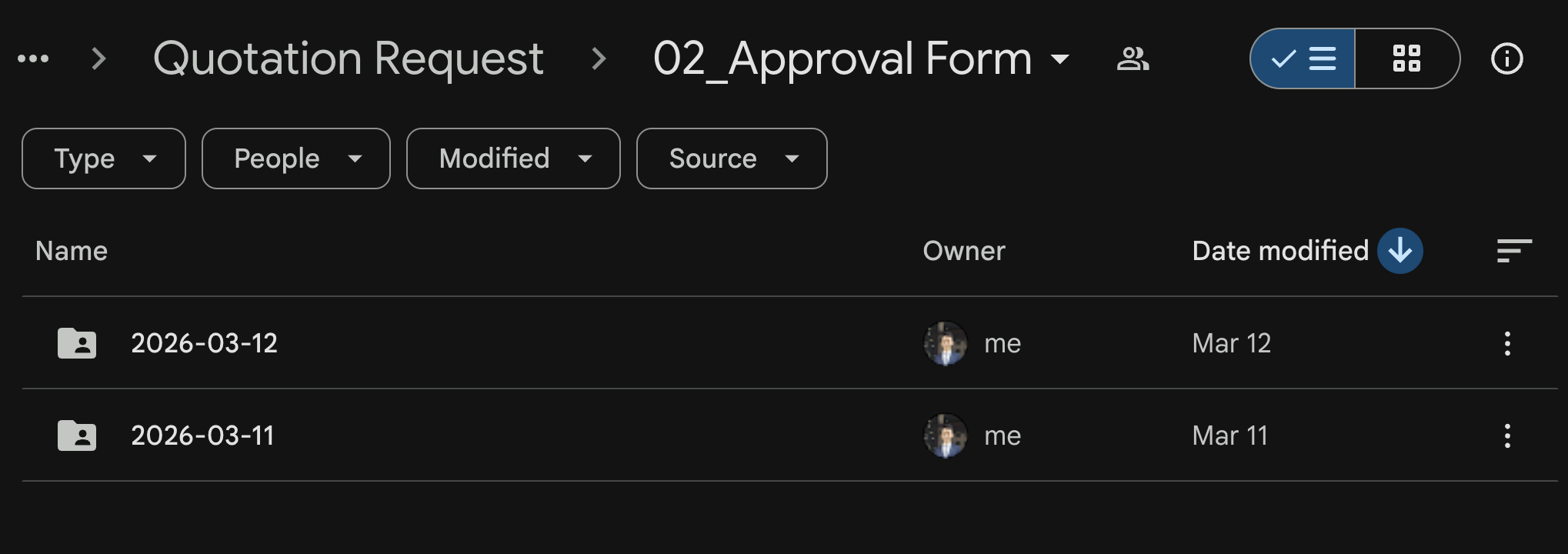
Every generated document lands in the working folder you chose in step 2, named the way you want — so approved records organize themselves. Approvers get email notifications when it's their turn, and the Approval summary sheet keeps a clear record of who approved what and when.
Optional settings to fine-tune the flow
Open Setting in the Light Workflow panel to tailor how each approval behaves:
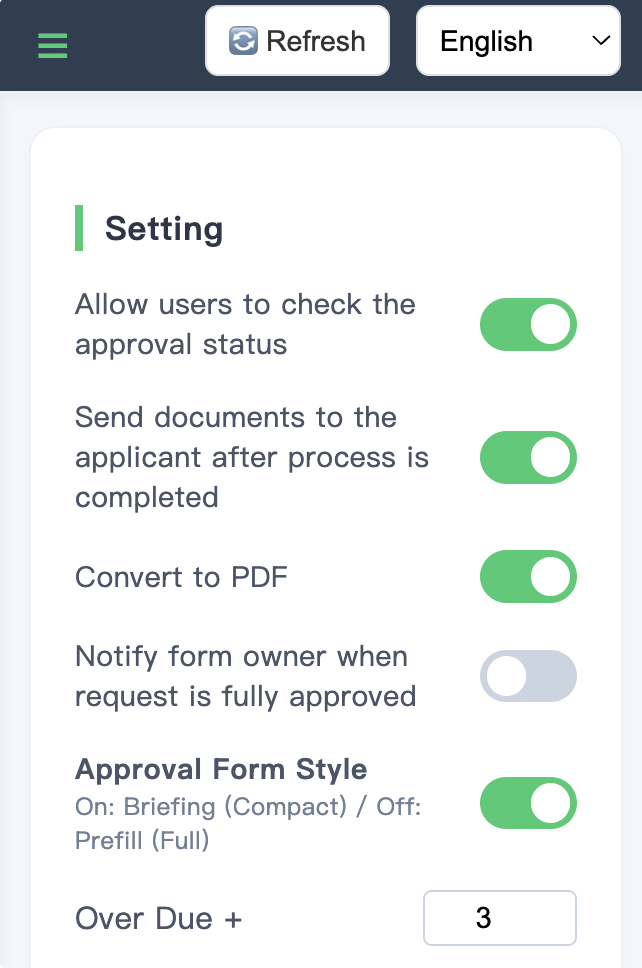
Common use cases
- Purchase requests — route to a manager, then auto-generate a PO.
- Leave applications — approve or reject and keep a clean record.
- Quotations — approve, then produce a branded PDF to send.
- Reimbursements — review claims and file approved ones automatically.
- Access & onboarding requests — confirm before granting access.
Frequently asked questions
Can Google Forms approve submissions on its own?
Google Forms™ collects responses but has no built-in approval step — it can't route a submission to an approver or record an approve/reject decision. For that you need an add-on such as Light Workflow.
How do I route a submission for approval?
Install Light Workflow, open the dashboard, and add approvers to the recipient list. Each approver gets an email and can approve or reject; add recipients in order for multi-step sign-off.
Can a PDF be generated automatically when a form is approved?
Yes. Light Workflow maps the answers into a PDF, Google Docs™ or Sheets™ template and produces the document automatically once a submission is approved, then files it to Drive™.
Can I require more than one approver?
Yes. Add multiple recipients in the order they should sign off, and the request moves from one approver to the next until it's complete.
Is Light Workflow free?
Light Workflow has a free tier and a 30-day free trial of paid plans. You can see pricing here or install it from the Marketplace at no cost.
Still have a question?
Our support team is happy to help — we usually reply within one business day.
Contact