
Need to cap how many people can sign up for a time slot, an event, or a class through Google Forms™? By default, Google Forms has no way to set a maximum number of responses or to limit how many people pick a specific option. This guide shows you the fastest way to limit responses in Google Forms — per answer option, per question, or for the whole form — and have the form close automatically when it's full. No scripts, no coding.
- Response limit per option
- Total form limit
- Auto-close when full
- Free add-on
Why limit responses in Google Forms?
Whenever your form represents something with limited capacity, you need a cap. Common examples:
- Appointment booking — only 3 people per time slot.
- Event & workshop sign-ups — stop accepting registrations once seats run out.
- Class or session enrollment — keep each group within room capacity.
- Volunteer shifts — fill each shift exactly, no over-booking.
- Equipment or resource lending — limit by how many units you actually have.
Without a limit, you end up manually counting responses and closing the form by hand — and people keep booking slots that are already full.
What Google Forms can & can't do natively
Google Forms includes one related setting: "Limit to 1 response," which stops the same person from submitting twice (it requires sign-in). That's useful, but it does not:
- set a maximum total number of responses;
- limit how many people can choose a specific answer option;
- close the form automatically when it reaches a target number.
To do any of these, you need an add-on. Light Form adds exactly these capabilities directly inside Google Forms — and it's free to start.
Install the Light Form add-on
Open the Light Form page on the Google Workspace™ Marketplace and click Install. It takes a few clicks and works inside the Google Forms editor you already use.
Open the Light Form sidebar
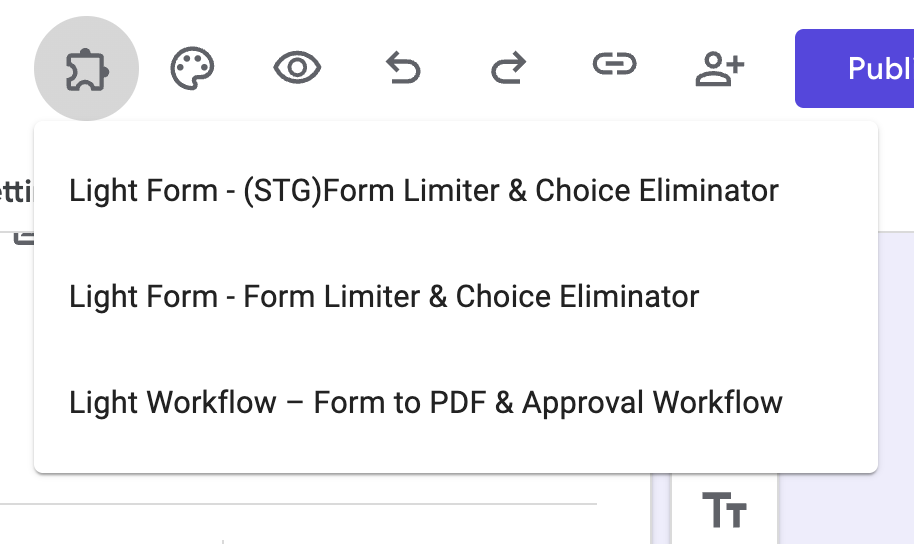
Open the Google Form you want to limit. Click the Add-ons icon (the puzzle piece) in the top toolbar, choose Light Form, and the sidebar opens with two tabs: Question and Form.
Set a response limit per option (or per question)
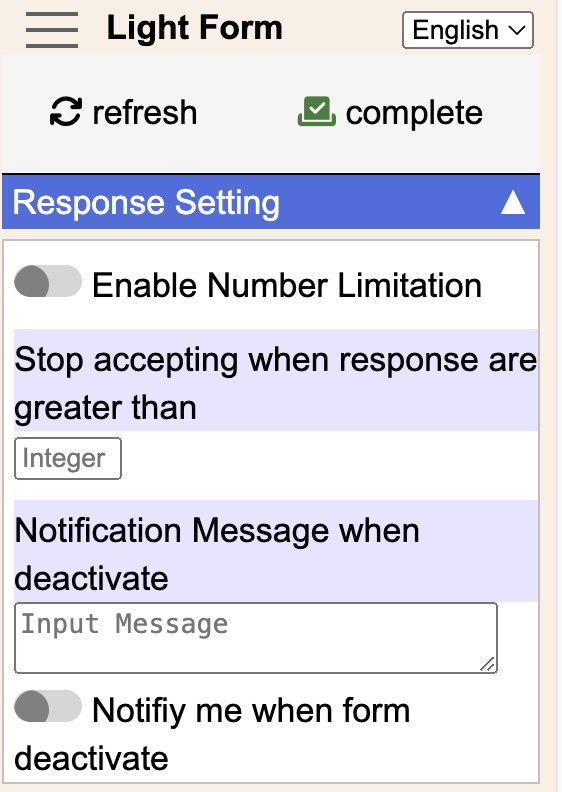
On the Question tab, pick the multiple-choice, checkbox, or dropdown question you want to control. Enter a maximum number of responses for each option — for example, 3 seats for the "9:00 AM" slot. When an option hits its limit, Light Form removes it automatically, so no one can pick a slot that's already full.
Set a total limit for the whole form
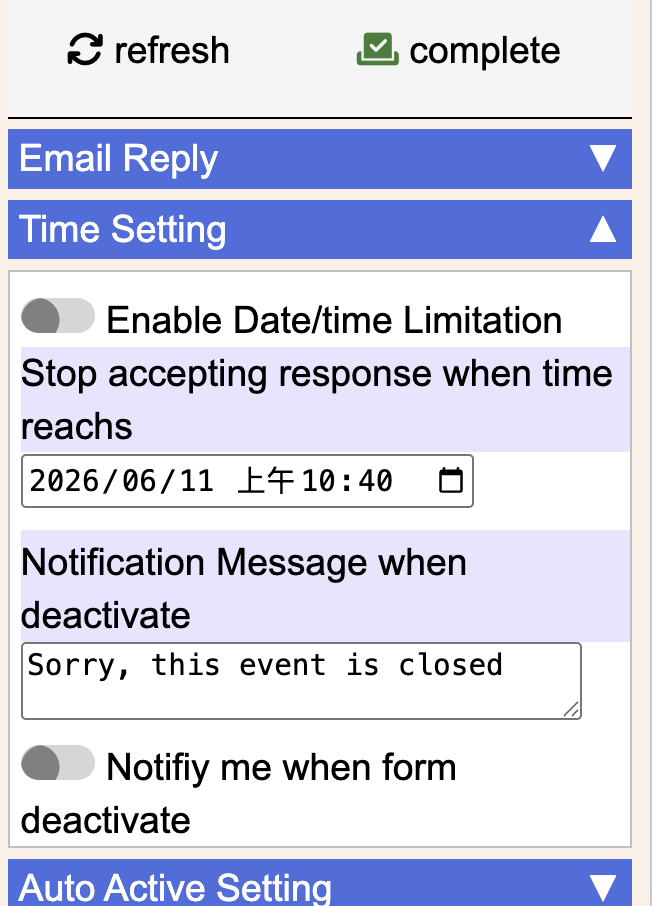
Switch to the Form tab to cap the total number of responses for the entire form. You can also flexibly choose to open or close the form automatically — so once you hit your target number, the form stops accepting new submissions on its own.
Common use cases
- Appointment slots — cap each time slot and let full times disappear.
- Event registration — close sign-ups automatically when seats sell out.
- Class enrollment — keep each session within capacity.
- Volunteer scheduling — fill shifts precisely without double-booking.
- Surveys with quotas — stop collecting once you reach your sample size.
Frequently asked questions
Can Google Forms limit the number of responses on its own?
Google Forms can limit each person to one response, but it can't cap the total number of responses or limit how many people choose a specific option. For that you need an add-on such as Light Form.
How do I limit responses per answer option?
Install Light Form, open the sidebar, go to the Question tab, and enter a maximum for each option. When an option reaches its limit it's removed automatically.
Does the form close automatically when the limit is reached?
Yes. On the Form tab you can set a total response limit and have the form open or close automatically, so you never go over capacity.
How quickly does a full option get disabled?
After a submission pushes an option to its limit, it takes around 2–5 seconds for that option to be disabled.
Is Light Form free?
Light Form has a free tier and a 30-day free trial of paid plans. You can see pricing here or install it from the Marketplace at no cost.
Still have a question?
Our support team is happy to help — we usually reply within one business day.
Contact